Showing posts with label Internet. Show all posts

Public DNS Gratis dan Cepat

Posted by che6vara on Feb 18, 2011

Internet speedy di kantor aneh kenapa mesti tiap bulan atau tiap minggu minta ganti dns, katanya orang-orang yang katanya public DNS google itu number 1. emang jaringannya mungkin ya yang aneh..padahal punya temen sama-sama pakai speedy DNS g pernah ganti...yah karena frustasi kalo mau ganti DNS mesti googling dulu, jadi aku taruh di blog sendiri aja deh. -:). ya kali aja yang berkunjung ke blog sepi ini berbaik hati buat ngasih solusi, kenapa, mengapa, ada apa, dan bagaimana??gitu kali ya..heheh..yaudah ini nih FREE Fast DNS baru sedikit, lain kali di update dah.. moga bermanfaat yah...

Public DNS Server Gratis

=> Service provider: Google
Google public dns server IP address:

  • 8.8.8.8
  • 8.8.4.4

=> Service provider:Dnsadvantage
Dnsadvantage free dns server list:

  • 156.154.70.1
  • 156.154.71.1

=> Service provider:OpenDNS
OpenDNS free dns server list / IP address:

  • 208.67.222.222
  • 208.67.220.220

=> Service provider:Norton
Norton free dns server list / IP address:

  • 198.153.192.1
  • 198.153.194.1

=> Service provider: GTEI DNS (now Verizon)
Public Name server IP address:

  • 4.2.2.1
  • 4.2.2.2
  • 4.2.2.3
  • 4.2.2.4
  • 4.2.2.5
  • 4.2.2.6

=> Service provider: ScrubIt
Public dns server address:

  • 67.138.54.100
  • 207.225.209.66

More about → Public DNS Gratis dan Cepat

Make Your Internet Conection Perform Faster..100% Working

Posted by che6vara on Jul 15, 2010

Namebench is a tools wich provide by google to help us get the fastest and the best DNS, so with this tools we can increase our internet connection up to 50% with finding DNS which suitable with our computer. Before this tools google had release GOOGLE PUBLIC DNS wich also can increase our browsing speed but Namebench I thing is better than it.

You can see and analyze the screenshoot


How to Operate?

- Open the Namebench Program
- Than press "Start Benchmark" button
- the process for finding the fastest and the best DNS maybe take time for 15-30 minutes
- after the process done, Namebench will give you a Recommended DNS for your Network
- change your DNS Server in your Router/PC
- Restart the connection
- than see the result………..


Here the link to download this tools, good luck


DOWNLOAD


More about → Make Your Internet Conection Perform Faster..100% Working

10 Addons Favorit Untuk Meningkatkan Kinerja Firefox

Posted by che6vara on Jul 2, 2010

Firefox adalah browser favorit saya gan sejak lahir maksudnya beberapa tahun terakhir.

Selain juga cepet, Salah satu alasan utamanya adalah banyaknya addon gratis yang bisa ditambahkan untuk memperkaya fitur Firefox. Ini tentunya berbeda dengan Internet Explorer dan Opera yang hanya memiliki sedikit pilihan addons atau plugins.

Di bawah ini adalah 10 addon penting untuk “kenyamanan” juragan dalam melakukan aktifitas surfing:

1. Adblock Plus
Banyaknya iklan yang ada di suatu halaman web, selain “mengganggu” juga akan memperlambat proses loading halaman web tersebut. Dengan addon ini Anda bisa memblok iklan-iklan tersebut, baik iklan teks maupun iklan gambar (banner).
https://addons.mozilla.org/en-US/firefox/addon/1865


2. Flashblock
Digunakan untuk memblok flash. Cocok untuk Anda yang menggunakan koneksi internet kecepatan rendah. Anda tetap dapat memainkan flash yang terblok dengan menekan tombol Play.
https://addons.mozilla.org/en-US/firefox/addon/433

3. Tab Scobe
Untuk menampilkan preview dari halaman web, mirip dengan fitur previewnya Opera.
https://addons.mozilla.org/en-US/firefox/addon/4882


4. Screengrab
Dengan addon ini Anda bisa membuat screenshoot tampilan halaman web.
https://addons.mozilla.org/en-US/firefox/addon/1146


5. DownloadHelper
Dengan addon ini Anda bisa mendownload video dari ratusan situs video di internet seperti Youtube, MetaCafe, Google Video, Yahoo Video, dsb langsung dari Firefox, tanpa bantuan download manager khusus.
https://addons.mozilla.org/en-US/firefox/addon/3006


6. Foxmarks
Dengan addon ini Anda bisa melakukan sinkronisasi Bookmarks (daftar situs yang disimpan sebagai favorit). Cocok untuk Anda yang biasa mengakses internet dari banyak tempat, misalnya kantor, rumah, warnet, dsb.
https://addons.mozilla.org/firefox/addon/2410


7. GreaseMonkey
Dengan GreaseMoney dan script yang ada di userscripts.org Anda bisa “meng-customize” suatu situs, misalnya mem-by pass countdown download rapid*share, memblok iklan pada GMail, membuat dropdown halaman login Gmail, dsb.
https://addons.mozilla.org/firefox/addon/748

8. FlashGot
Ini merupakan addon yang mengintegrasikan firefox dengan download manager favorit Anda. Anda bisa “menggabungkan” FlashGot dengan FlashGet, BitComet, Download Accelerator Plus, GetRight, MassDownloader, dan sebagainya.
https://addons.mozilla.org/en-US/firefox/addon/220


9. Tab Mix Plus
Addon ini akan menambahkan banyak fitur baru terutama yang berkaitan dengan tab, misalnya membuat duplikat tab, mengunci tab, mengontrol fokus, mengembalikan tab yang ditutup, dsb.
https://addons.mozilla.org/firefox/addon/1122


10. Fast Dial
Fast Dial akan “menggantikan” isi tab yang kosong pada saat membuka tab baru dengan tab yang berisi thumbnail dari situs favorit Anda.
https://addons.mozilla.org/en-US/firefox/addon/5721


Sumber:http://www.kaskus.us/showthread.php?t=2393269
More about → 10 Addons Favorit Untuk Meningkatkan Kinerja Firefox

Speed Up Browsing

Posted by che6vara

Before, im using 3 unlimited, signal always Full WCDMA or HSDPA. But the speed does not satisfied at all, only 10-20kbps, even sometimes less than 10kbps (just like gprs connection T_T). After try the tips above, speed increased become 40-60kbps (without extended any kind of software). for you kaskuser may try this one. May Help ur connection =)

Speed Up Browsing

When you connect to a web site your computer sends information back and forth. Some of this information deals with resolving the site name to an IP address, the stuff that TCP/IP really deals with, not words. This is DNS information and is used so that you will not need to ask for the site location each and every time you visit the site. Although Windows XP and Windows XP have a pretty efficient DNS cache, you can increase its overall performance by increasing its size. You can do this with the registry entries below:

Windows Registry Editor Version 5.00
[HKEY_LOCAL_MACHINE\SYSTEM\CurrentControlSet\Servic es\Dnscache\Parameters]
"CacheHashTableBucketSize"=dword:00000001
"CacheHashTableSize"=dword:00000180
"MaxCacheEntryTtlLimit"=dword:0000fa00
"MaxSOACacheEntryTtlLimit"=dword:0000012d

Make a new text file and rename it to dnscache.reg. Then copy and paste the above into it and save it. Merge it into the registry.


Speed up your browsing of Windows 2000 & XP machines

Here's a great tip to speed up your browsing of Windows XP machines. Its actually a fix to a bug installed as default in Windows 2000 that scans shared files for Scheduled Tasks. And it turns out that you can experience a delay as long as 30 seconds when you try to view shared files across a network because Windows 2000 is using the extra time to search the remote computer for any Scheduled Tasks. Note that though the fix is originally intended for only those affected, Windows 2000 users will experience that the actual browsing speed of both the Internet & Windows Explorers improve significantly after applying it since it doesn't search for Scheduled Tasks anymore. Here's how :

Open up the Registry and go to :

HKEY_LOCAL_MACHINE/Software/Microsoft/Windows/Current Version/Explorer/RemoteComputer/NameSpace

Under that branch, select the key :

{D6277990-4C6A-11CF-8D87-00AA0060F5BF}

and delete it.

This is key that instructs Windows to search for Scheduled Tasks. If you like you may want to export the exact branch so that you can restore the key if necessary.

This fix is so effective that it doesn't require a reboot and you can almost immediately determine yourself how much it speeds up your browsing processes.


Source:http://www.kaskus.us/showthread.php?t=4178842
More about → Speed Up Browsing

Membuat wifi dengan Laptop

Posted by che6vara

Ane Maw Kasih Info nih Caranya membuat wifi dengan Laptop.
Jadi ENtar klau Agan2 Semua Hang-out ma tmen2 truz yang
punya modem cuma satu orang .. Agan Tenang saja!
1 Modem Bisa dipakai Ma puluhan Laptop Loh! Hehe ..
Sebenarnya kita dapat membuat ”semacam” akses poin dengan fasilitas wifi yang dimiliki oleh laptop kita. Dengan begitu, kita dapat melakukan sharing file dengan laptop lain yang terkoneksi melalui wifi tersebut. Bahkan kita dapat berbagi koneksi internet. Namun, tentu saja kekuatan sinyal yang dipancarkan tidak sejauh bila menggunakan akses poin.

Berikut cara membuat ”semacam” akses point pada laptop kita:

1. Klik 2x ikon wifi di pojok kanan bawah, sehingga muncul layar Wireless Network Connection
2. Lalu lihat di sebelah kiri terdapat tulisan “Set up a wireless network for a home or small office”. Klik tulisan tersebut.


3. Akan muncul sebuah wizard seperti berikut.


4. Klik Next lalu akan muncul wizar baru kemudian pilih ”Set up a new wireless network”.

5. Klik Next dan akan muncul wizard berikut.


Masukkan SSID (network name). SSID adalah nama network yang akan dipancarkan. Pilih “Manually assign network key” untuk membuat password secara manual apabila hendak masuk ke jaringan tersebut.

6. Lalu klik Next dan masukkan password yang akan digunakan bila hendak masuk ke jaringan.


7. Lalu klik Next , maka akan muncul wizard berikut.


8. Klik Next lalu Finish

Itu adalah cara pertama. Namun terkadang cara pertama tersebut gagal karena pada beberapa kondisi mengharuskan setting jaringan sebagai jaringan Ad-Hoc, namun pada cara pertama tadi tidak ada langkah untuk setting jaringan menjadi Ad-Hoc. Oleh karenanya saya tulis lagi cara lain yang menurut saya lebih sederhana dan sering saya gunakan.

1. Klik 2x ikon wifi di pojok kanan bawah, sehingga muncul layar Wireless Network Connection
2. Pada pojok kiri bawah terdapat tulisan ”Change Advanced Setting”. Klik tulisan tersebut.
3. Maka akan muncul jendela properties seperti berikut.


4. Klik Tab Wireless Networks. Maka akan berpindah pada Tab lain seperti ini.

Klik tombol Add.

5. Lalu akan muncul jendela baru seperti ini.

Masukkan SSID. Kemudian hilangkan tanda centang pada ”The key is provide for me automatically” supaya kita dapat menentukan sendiri password yang akan digunakan untuk masuk ke jaringan. Lalu beri tanda centang pada “This is a computer-to-computer (ad hoc) network;wireless acces points are not used”.

6. Lalu klik OK dua kali.

Sekarang, kita cek jaringan wireless yang kita buat tadi sudah ada atau belum dengan cara klik 2x ikon wifi di pojok kanan bawah, sehingga muncul layar Wireless Network Connection seperti berikut.

Apabila SSID yang kita buat tadi sudah tampak, maka berarti kita sudah berhasil. Namun statusnya masih ”On Demand”. Untuk mengaktifkan jaringan tersebut agar laptop lain dapat juga terhubung, maka laptop yang digunakan sebagai ”akses poin” harus mengkonekkan dengan jaringan tersebut terlebih dahulu. Oleh karenanya, klik tombol ”Connect” pada jendela tersebut. Masukkan password yang sudah dibuat tadi.

Setelah itu, status yang terlihat akan seperti berikut.

Di gambar tersebut statusnya menjadi Not Connected. Jangan khawatir, karena status itu menunjukkan bahwa belum ada computer/laptop lain yang terhubung dalam jaringan tersebut. Nanti apabila sudah ada komputer/laptop yang terhubung, maka statusnya akan berubah menjadi Connected.

Cara membuat ”semacam” akses poin ini pernah juga saya terapkan menggunakan kartu jaringan wireless Internal pada komputer. Dan mungkin saja dapat diterapkan pada USB wireless network, namun untuk USB wireless network saya belum pernah mencoba.

Dengan terkoneksi dalam jaringan wireless ini, kita dapat saling berbagi dengan komputer/laptop lain dengan cara menyamakan WORKGROUP yang ada pada Windows kita.
Dan seperti yang saya katakan tadi, bahwa kita pun dapat membagi jaringan internet yang terkoneksi pada laptop ”akses poin” kepada laptop/komputer lain yang terhubung dalam jaringan wireless ini. Bagaimana caranya? Akan saya bahas di tulisan berikutnya.

SUMBER : http://berbagaicara.blogspot.com
More about → Membuat wifi dengan Laptop

10 Daftar Virus Tercanggih di Dunia

Posted by che6vara on Jun 28, 2010

Storm Worm adalah virus yang muncul pada tahun 2006, Storm Worm ini adalah sebuah julukan yang di berikan oleh perusahaan di Finlanddia F-Secure, Strom Worm ini menyebar melalui via email dengan judul “230 dead as storm betters Europe” Storm worm ini adalah sebuah program Trojan House yang dari beberapa versinya dapat membuat menjadi bots atau membuat computer menjadi mengirimkan email spam secara automatic, Worm Storm menyumbang 8% dari seluruh infeksi malware secara global.
Anti virus Yang digunakan : BitDefender Antivirus (www.bitdefender.com)


Leap-A/Oompa- A adalah virus yang menyerang system oprasi Mac Os yang mampu mengirimkan pesan ke semua kontak yang anda miliki pada iChat, virus ini masuk melalui iChat yang berformat JPEG, virus Leap-A atau Oompa- A belum cukup berbahaya tetapi pada zaman ini teryata ada orang yang mampu membuat sebuah virus yang mampu menembus sistem operasi Mac Os meskipun pada Mac Os memiliki konsep security through obscurity yang yakin akan tidak ada virus yang menembus sistemnya.

Anti virus Yang digunakan : Kaspersky Anti-Virus (www.kaspersky.com)


Sasser virus, virus ini mampu melumpuhkan system Window yang mampu dibuatnya sampai tidak bisa melakukan proses ShutDown tanpa pada sumber dayanya atau aliran listriknya di cabut, virus ini tidak menyebar melalui vvia email tetapi bila computer yang terserang virus ini ada koneksi dengan computer yang lain maka virus ini akan berjalan secara otomatis dan computer yang pertamanya tidak terserang virus ini menjadi ikut terserang. Netsky, Netsky adalah virus yang menyebar melalui via email dengan 22 Kb attachment file dan jaringan Windows, bila netsky ini menyerang akan memyebabkan pada system DOS akan mengalami eror. Sasser and Netsky ini di buat oleh seorang anak yang berumur 17 tahun yang bernama Seven Jaschan,

Anti Virus Yang digunakan ; Webroot Antivirus (www.webroot.com)


MyDome adalah virus yang menyebar melalui via email selai itu MyDome ini menyebar melalui media search engines (seperti Google) virus ini mulai menyebar tanggal 1 february 2004 yang lalu dan menyerang DOS yang kedua virus ini menyebar pada tanggal 12 february 2004, gara – gara MyDome ini tersebar pada search engines SENATOR US CHUCK SCHUMER mengajukan agar secepatnya membuat National Virus Response Center.

Anti Virus Yang digunakan : ESET Nod32 (www.eset.com)


SQL Slammer/Saphire ini mulai menyebar pada januari 2003 virus ini menyebar cepat melalui internet. Pada 2003 ATM Bank Amerika mengalami crash, dan menyebabkan layanan 911 Seattle hancur dan Continental Airlines membatalkan penerbanggan mereka karena eror checkin dan ticketing,maka virus SQL Slammer/Saphire ini menyebabkan kerugian mencapai $1Miliar.

Anti virus Yang digunakan : AVG Anti-Virus (www.avg.com)


Nimba virus ini menyebar pada tahun 2001 dan penyebarannya sangatlah cepat, Nimba virus ini adalah memiliki targen server – server besar dan membuatnya menjadi backdoor ke Os, virus ini cara penyebarannya melalui internet access, menurut TruSecure CTO Peter Tippet Nimba virus ini hanya butuh 22 menit untuk masuk menjadi TOP teen Virus tercanggih.

Anti Virus : Vipre Antivirus + Antispyware (www.vipreantivirus.com)


Code Red & Code Red II, virus ini muncul pada musim panas 2001, virus ini bertujuan pada saat computer berhubungan dengan White House maka semua computer yang kena virus Code Red & Code Red II ini akan mengaccess ke web di white House secara otomatis dan berbarengan, maka akan menjadi overload atau serangan ke DDoS, Code Red & Code Red II ini menyerang OS Windows 2000 dan NT.

Anti virus : F-Secure Anti-Virus (www.f-secure.com)


The Klez, virus ini baru menyerang pada tahun 2001, The Klez ini menyerang melalui Via Email, Virus ini dapat menggandakan email dan terus mengirimkannya ke semua yang ada pada addres book. The Klez ini juga dapat menyebabkan kumputer anda tidak bisa beroprasi secara normal dan tidak dapat menghentikan anti virus.

Anti Virus : Trend Micro (www.trendmicro.com)


ILOVEYOU adalah Virus yang munculnya dari Filipina yang berbentuk Worm, virus ini menyebar via email, Virus ini dapat membuat file virus ini dan mereplikasi dengan sendirinya, Virus ILOVEYOU ini berjudulkan surat cinta dari pengagum rahasia, Original file nya atau induk dari virus ini adalah LOVE-LETTER- FOR-YOU.TXT. vbs., VBS (Visual Basic Scripting) , pencipta virus ILOVEYOU ini adalah Onel de Guzman dari FILIPINA

Anti Virus : McAfee VirusScan (www.mcafee.com)


Melissa virus ini di buat pada tahun 1999 oleh David L Smith, virus ini menyebar Via email dengan document “Here is that document you asked for, don’t show it to anybodey else.” Bila anda membuka file yang dikirimkan nya ini maka document ini akan menyebar secara otomatis . dan dapat menyebabkan replikasi virus ini secara otomatis mengirimkan document ini ke 50 Top email address yang ada di email anda.

Anti virus : Norton AntiVirus (www.symantec.com)
More about → 10 Daftar Virus Tercanggih di Dunia

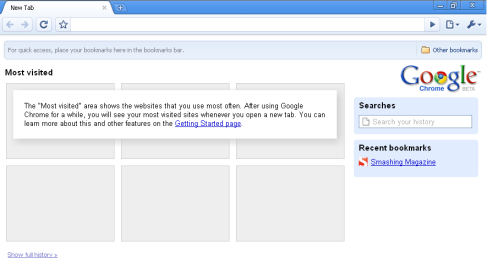
Google Chrome Update rilis 40213

Posted by che6vara on Sep 30, 2009


Jakarta - Google telah melakukan perbaikan sistim dan update pada browser Chrome miliknya dalam versi 4.0.213 yang baru saja dirilis. Salah satu fitur baru yang katanya diperbaiki adalah FTP code.

Jonathan Conradt, engineering program manager Google Chrome menyebutkan, ada beberapa perbaikan yang dilakukan untuk Chrome, seperti perbaikan pada toolstripsmengalami crash, serta audio dan video tag yang tidak bekerja pada sumber ekstensinya.
yang

Meski FTP code terbaru ini telah tersedia untuk semua platform, seperti detikINET kutip dari Softpedia, Sabtu (25/9/2009), masih ada beberapa fitur yang belum diperbaiki. Misalnya, FTP server masih membutuhkan authentication saat pengguna berpindah dari satu lokasi ke lokasi lain ketika melakukan navigasi.

Untuk free download klik disini
More about → Google Chrome Update rilis 40213

Cara Membobol Wifi Hotspot

Posted by che6vara on Sep 15, 2009

Tadi malam salah satu teman saya datenag dengan laptopnya. Saya jadi
kepikiran untuk mencoba mencari cara membobol wifi hotspot yang
ternyata sinyalnya kuat banget di lantai 2 rumah yang saya tempati.
Warung berhotspot wifi itu letaknya kurang lebih 75 meteran dari
rumah. Lalu setelah secara asal saja mencoba connect, ternyata itu
wifi hotspot tidak bisa dibobol dengan cara biasa. Sepertinya di
protect beneran. Brarti pengelolanya pinter…., selamat!!!!


Setelah teman saya tadi pulang, saya mencoba cari cara yang 'mungkin'
bisa dilakukan untuk membobol itu wifi hotspot. Siapa tahu bisa, kan
lumayan isa internetan gratis dari rumah.


Kalau di intip dengan NetStumbler, di sekitar rumah saya ini ternyata
ada 3 buah AP yang sinyalnya berseliweran. 1 sangat kuat yang letaknya
dekat itu tadi, lalu 2 yang lain sinyalnya nyambung putus. Kalau pakai
toolnya windows yang terlihat cuman 1.


Dari yang pertama itu ada penawaran Rp. 150,000,00 per bulan untuk
internet unlimited 24 jam/hari 7 hari seminggu/sebulan penuh. Kalau
yang sinyalnya agak lemah itu menawarkan Rp. 95.000,00/bulan. Kalau
bisa gratis kenapa harus bayar ya …., Sebenarnya saya tidak terlalu
jahat seperti itu. Saya cari cara membobol wifi hotspot itu lebih
karena penasaran, pingin bisa gitu …. Tapi dasar pemula, tidak juga
bisa ternyata. Hehe …


Kemudian sekitar jam 11an saya mulai googling dengan sisa-sisa pulsa
telkomsel flash on saya yang tinggal sedikit itu. Ini hasilnya (saya
copy-paste-kan dengan sedikit perubahan)


Trik ini juga dipakai untuk mencari password yang digunakan oleh
seseorang untuk mengakses hotspot yang menggunakan kartu prepaid.

Alat yang dipersiapkan sih simple aja :

- Seperangkat Laptop : PC yang ada wifi adapternya juga bisa, asal
jaringan hotspotnya bisa tertangkap.


- Charger laptop : karena pasti memakan banyak daya batre saat
keranjingan internet gratisNgakakNgakak.


Software yang diperlukan:
1. IPScan.exe
2. TMACv5_Setup.zip

Langsung aja sekarang ke caranya:

1. Cari lokasi penyedia layanan hotspot, tentunya di daerah yang
terjangkau jaringan hotspot tersebut.


2. Hidupkan laptop anda, dan hidupkan pula wireless network anda dan
lihat di sistem tray icon wireless network, kemudian klik kanan dan
pilih view avalible wireless network, dan tentunya setelah itu anda
harus connect ke wireless hotspot tujuan anda.


3. Setelah connect, klik kanan sistem tray dan pilih status >pilih tab
detail > kelihatan disana ip yang diberikan kepada kita. Catat ip
tersebut.
Buka Program AngryIP Scanner dan isikan ip range yang akan kita scan
(pakai data ip kita tadi) pada bagian atas. Misalnya : IP yang kita
dapat xxx.xxx.x.xx kemudian masukkan pada kolom range pertama ip kita
sesuai dengan ip yang tadi namun ganti angka di bagian akhir dengan 1
menjadi xxx.xxx.x.1 dan pada kolom kedua tuliskan sama namun angka
satu diakhir itu ganti dengan 255 menjadi xxx.xxx.x.255. hasilnya
xxx.xxx.x.1 to xxx.xxx.x.255 dan klik start (tombol merah).


4. Setelah melakukan scanning maka kita akan mendapatkan data ip yang
hidup yang terkoneksi dengan hotspot tersebut. setelah scanning
selesai maka lihat ip yang hidup (alive host) warna biru klik kanan
pada ip yang hidup Klik kanan pada ip yang warna biru tadi klik kanan
> show > mac address dan akan ada kode mac addres (terkadang ada mac
addressnya tidak tampil, pilih saja ip yang lainnya). Catat mac
address yang kita dapatkan.


5. Buka Program Mac Address Changer yang telah kita persiapkan. Disana
ada field mac address. nah sekarang tinggal ganti mac address tersebut
dengan yang kita dapatkan tadi dan tekan change mac id.


6. Tunggu karena mac kita akan diganti dan koneksi sementara terputus
dan konek lagi otomatis sendiri.

7. Masuk web browser firefox atau apa saja boleh. Nikmati Internet Gratis…

Satu hal yang perlu diingat adalah kita sistemnya numpang data
transfer pada account yang kita hack tadi (yang punya ip tadi, maaf…).


Ini bisa di akali dengan masuk halaman status login hotspot tersebut
(untuk dapat account). Misalnya idonbiu.hotspot.net/status dan begitu
masuk disana kan terlihat nomor sandi prepaid card dan kita catat
saja, lalu logout, dan masuk kembali ke halaman login hotspot itu
cepat-cepat masukkan sandi tadi. Hal ini akan membuat kita secara
langsung dapat mengakses internet tanpa menumpang lagi (soalnya yang
make prepaid card code kan kita) jadi kalau ada yang mau login pakai
kartu itu (yang punya code) saat kita login pakai kartu itu tentunya
dia tidak akan bisa masuk karena kartu prepaid cardnya "already
login".
Bagaimana, menarik bukan ?


Tapi saya sarankan, seperti yang saya lakukan adalah dengan menumpang
saja, karena saya tidak mau berbuat terlalu jauh, seperti cara yang
saya beritau untuk me log off dan log in lagi tentunya akan membuat
sang pemilik tidak bisa log in. Kasian kan ?


Jadi mumpung sudah dikasi gratisan, kenapa gak numpang saja ya,
itung-itung cuman ikutan ngakses bareng kan tidak terlalu merugikan.
Minta ijin langsung juga kemungkinan yang punya gak nolak, asal
kepentingannya memang mendesak.


Untuk Scanning Ip juga bisa memakai aplikasi Dude 3.2.zip untuk
mengetahui kondisi koneksi komputer-komputer ke hotspot. Bisa dicoba
juga ya.
niy dapet yang terbaru klo di hotspot pada pake wep or wpa pake ini aja
barusan dicobain tembus euy.....
wkeygen.zip atau WKG.EXE
tinggal jalanin programnya trus generate,, kopi aja langsung ke
network key-nya...


Sekali lagi, semua ini hanya untuk pembelajaran saja, selama kita
masih mampu kenapa gak pakai yang legal aja. Dan ini juga bisa
dimanfaatkan oleh pemilik hotspot, kalau cara ini masih bisa digunakan
untuk membobol. Jadi perlu keamanan yang lebih.

Sumber: dee-nesia,http://kampung-hacker.blogspot.com
More about → Cara Membobol Wifi Hotspot

MENAMPILKAN TOP POST (ARTIKEL TERPOPULER) PADA BLOG

Posted by che6vara on Sep 9, 2009


Top post (artikel terpopuler) diperlukan agar para pengunjung dapat mengetahui postingan apa saja yang paling banyak dikunjungi pada blog kita. Top Post biasanya dihitung berdasarkan banyaknya klik atau komentar yang dilakukan oleh pengunjung blog. Dengan demikian, kita dapat memasang widget top post yang didasarkan pada banyaknya jumlah komentar tersebut. Widget tersebut dibuat dengan menggunakan metode feed dan diolah dengan bantuan Yahoo Pipes yang saya dapatkan ketika “jalan-jalan” di blog Mas Anang.

Mendasarkan perhitungan pada banyaknya komentar memang bukanlah cara yang pas karena banyak pengunjung yang melakukan klik tetapi tidak meninggalkan komentar apa-apa pada suatu postingan. Namun setidaknya inilah yang dapat diukur dan paling mendekati kenyataan.

Dari pada pusing, lebih baik kita langsung mengikuti langkah-langkah untuk menampilkan top post seperti berikut ini.

1. Login ke http://blogger.com hingga masuk Dasbor >> Tata Letak (layout) >> Tambah Gadget >> Tambahkan HTML/Javascript >>

2. Kemudian copy kode berikut ini.

<script type="text/javascript">
function pipeCallback(obj) {
document.write('<ul style="text-transform: capitalize;">');
var i;
for (i = 0; i < obj.count ; i++)
{
var href = "'" + obj.value.items[i].link + "'";
var item = "<li>" + "<a href=" + href + ">" + obj.value.items[i].title + "</a> </li>";
document.write(item);
}
document.write('</ul>');
}
</script>
<script src="http://pipes.yahoo.com/pipes/pipe.run?_render=json&_callback=pipeCallback&_id=ff855e4f4d4a10fde1c2eb32074f99cd&url=http%3A%2F%2Fnama_blog.blogspot.com&num=10" type="text/javascript">
</script>
<span style="gt;Widget edited by <a href="http://anangku.blogspot.com/2008/06/blogger-top-post-artikel-terpopuler.html">Anang </a></span>


Keterangan

* Ubah nama_blog dengan nama blog Anda.
* Angka 10 menunjukkan jumlah post yang dapat Anda ganti sesuai keinginan.

3. Kemudian Simpan Perubahan

4. Selesai

(sumber : Anangku.blogspot.com)
More about → MENAMPILKAN TOP POST (ARTIKEL TERPOPULER) PADA BLOG

Facebook Emotion

Posted by che6vara on Sep 8, 2009


Suka chating?? Facebook mempunyai salah satu kelebihan yang sebelumnya berbeda dengan situs-situs jejaring lainnya yaitu fitur chatting.

Chating lebih oke kalo kita punya emoticon. Ekspresi kita bisa lebih tersampaikan. Bagi teman-teman yang suka chat, berikut adalah kamus emoticon di facebook... Selamat mencoba dan berchat ria di facebook.

NEWShark emoticon: (^^^)

Weird guy’s face: :putnam:

Cat smile: :3

Pacman: :v

Rude: :p or :-p

Sad: :( or :-(

Grumpy: >:-(

Cool shades: 8-|

Happy Eyes: >:o

Happy ^_^

Woot?!: O.o

Angel emote: O:)


Devil emote: 3:)
Duhhh emote: :/ or :\

Shocked :-o

Crying :'(

Love emote: <3


Big Smile :-D

Dork emote: -_-
Robot: :|]


More about → Facebook Emotion

Mempunyai Documen Online dengan Google Docs

Posted by che6vara on Sep 1, 2009

Mempunyai Documen Online dengan Google Docs


Google Docs salah satu aplikasi yang sangat luar biasa, sebuah aplikasi online yang sangat sederhana yang menangani segala jenis word processor, polling, dll.

Di dalam google docs sendiri ada bebearapa fitur ducumen sama halnya dengan aplikasi-aplikasi ofline pengolah document..di dalamnya terdiri dari document (word), presentation (pengolah presentasi), spreadsheet (exel) dan Form (bentuk formulir).

Penulis sendiri pernah di undang oleh teman untuk mengedit atau merefisi tulisannya dengan menggunakan google docs, jadi ketika teman mengirimkan documennya kita buka email google kita dan buka document tersebut, jika kita sudah mendaftarkan pada google docs secara otomatis kita dapat secara langsung merefisi atau mengedit tulisan tersebut.

Untuk cara pendaftrannya sangat simple dan hamper sama dengan mendaftarkan diri pada account-acount yang lain, tapi syaratnya kita harus mempunyai email dig mail untuk memudahkan kita dan selanjutnya kita tinggal mendaftarkan di docs.google.com

More about → Mempunyai Documen Online dengan Google Docs

Trik mempercepat Firefox 20%-30%

Posted by che6vara on Aug 28, 2009


* Ketik "about:config" pada address bar dan tekan enter. turunkan scroll kebawah dan cari entries berikut :

* network.http.pipelining
* network.http.proxy.pipelining
* network.http.pipelining.maxrequests

Secara normal browser akan membuat satu request untuk satu halaman web dalam satu kali . ketika kamu enable pipelining, itu akan membuat beberapa halaman dalam sekali. dan akan mempercepat page loading.

* Ubah entries berikut menjadi :

* Set "network.http.pipelining" menjadi "true"
* Set "network.http.proxy.pipelining" menjadi "true"
* set "network.http.pipelining.maxrequests" menjadi nilai seperti "30". ini artinya akan membuat 30 request dalam sekali.

* Terakhir klik kiri (dimana saja) select New -> Integer. masukan "nglayout.initialpaint.delay" pada prefence name, kemudian setnilai menjadi "0".


.::
For ADSL::.

1. Type: about:config
2. Set:
network.http.max-connections : 64
network.http.max-connections-per-server : 21
network.http.max-persistent-connections-per-server : 8
network.http.pipelining : true
network.http.pipelining.maxrequests : 100
network.http.proxy.pipelining : true

3. Lastly right-click anywhere and select New-> Integer. Name it "nglayout.initialpaint.delay" and set its value to "0". This value is the amount of time the browser waits before it acts on information it recieves.:icon_fU

Source: exiostbyte.blogspot.com

More about → Trik mempercepat Firefox 20%-30%

Lates Version mIRC v6.35 free download

Posted by che6vara on Jul 19, 2009


This is the latest version is mIRC v6.35 for Windows 95/98/ME/NT/2k/XP/Vista, have a small size (1.67MB). this software is provide by mIRC team. If you have the older version it will be automatically upgrade your current version without any change you previous setting. For more infor mation please visite this site http://www.mirc.co.uk.

To download it clikc HERE

More about → Lates Version mIRC v6.35 free download

Yahoo messenger 10 free download (for Vista)

Posted by che6vara


Yahoo messenger 10 coming with a great performance and appearance, it is much better than yahoo messenger before this type release..fill free to get it.....


To download it Klick HERE
More about → Yahoo messenger 10 free download (for Vista)

Backtrack 4 (pre release).iso free download.

Posted by che6vara on Jul 18, 2009


BackTrack is a Slackware and SLAX-based live CD with a collection of security and forensics tools.

BackTrack distribution was created by merging Auditor Security Linux with WHAX (formerly Whoppix).


Combining the best features from both distributions, and paying special attention to small details, this is probably the best version of either distributions to ever come out.


Based on SLAX (Slackware), BackTrack provides user modularity. This means the distribution can be easily customised by the user to include personal scripts, additional tools, customised kernels, etc.

klick this picture to download it


source: www.softpedia.com
More about → Backtrack 4 (pre release).iso free download.

Antamedia Bandwidth Manager 2.0.4 Free Download

Posted by che6vara


A simple and easy to use bandwidth manager


Bandwidth Manager helps you control download and upload rate for every computer in your network. Computers can be limited with specified time and quota per session, day time when access is allowed and set to logout after inactivity.

Bandwidth software for download limiting is very suitable for Internet and game cafes as it tightly integrates with Antamedia Internet cafe software enabling automatic blocking of traffic when user logout. Every user and computer can have different download and upload rates.

Klick HERE to download it

for more information klick www.softpedia.com
More about → Antamedia Bandwidth Manager 2.0.4 Free Download

Download Firefox 3.5.1 HERE

Posted by che6vara


The Fastest Firefox Yet

Things move quickly online, and we’ve beefed up the engine that runs Firefox to make sure you can keep up: Firefox 3.5 is more than twice as fast as Firefox 3, and ten times as fast as Firefox 2.* As a result, Web applications like email, photo sites and your favorite social networks will feel snappier and more responsive.

Klik here to Download


More about → Download Firefox 3.5.1 HERE

Google Earth 5.0.11337.1968 (Portable)|14MB

Posted by che6vara on Jul 16, 2009


Google Earth combines satellite imagery, maps and the power of Google Search to put the worlds geographic information at your fingertips. Fly from space to your neighborhood. Type in an address and zoom right in. Search for schools, parks, restaurants, and hotels. Get driving directions. Tilt and rotate the view to see 3D terrain and buildings. Save and share your searches and favorites. Even add your own annotations.

Google Earth lets you do smooth sailing flybyes of the entire Earth. You can easily fly to any spot on the globe, by entering any associated data, like street addresses, place names or lat/long coordinates. There are overlays that put additional information on the map, like roads, international boundaries, terrain, 3D buildings, crime statistics, schools, stadiums, any number of interesting stuff. You can do Local searches in the program, with icons on the map and a display on the side showing your results.

You can leave notes, called "placemarks" all over the map, so you can remember where all sorts of places are. Searches and placemarks can be saved as bookmarks in "My Places". Everything can be output in an XML format called KML, that will allow the vast popularity of Google Maps to continue in Earth. You can also email a JPEG of the map, or send a KMZ file if you know the recipient has Earth installed.

Features:
- Sophisticated streaming technology delivers the data to you as you need it.
- Imagery and 3D data depict the entire earth - Terabytes of aerial and satellite imagery depict cities around the world in high-resolution detail.

- Local search lets you search for restaurants, hotels, and even driving directions. Results show in your 3D earth view. Easy to layer multiple searches, save results to folders, and share with others.
- Layers show parks, schools, hospitals, airports, retail, and more.
- Overlays รข€“ import site plans, design sketches and even scanned blueprints.
- Annotate the view with lines and polygons.
- Spreadsheet import - ingest up to 2,500 locations by address or lat/lon.
- KML data exchange format let your share useful annotations.

Recommended configuration:
- Operating system: Windows 2000/ XP/ Vista
- CPU speed: Intel® Pentium® P4 2.4GHz+ or AMD 2400xp+
- System memory (RAM): 512MB
- 2GB hard-disk space
- 3D graphics card: 3D-capable video card with 32MB VRAM or greater
- 1280x1024, 32-bit true color screen
- Network speed: 128 kbps ("Broadband/Cable Internet")


DOWNLOAD LINK
http://www.mediafire.com/file/zxnnd4ujjmn/GoogleEarth_Portable_5.0.11337.1968_MultiLang.paf.exe

OR
http://uploading.com/files/R2584HPJ/Google-Earth 2009! Final+Patch+Crack.rar.html
Pass : www.freshwap.net

BACK UP
Here

source: exiostbyte.blogspot.com


More about → Google Earth 5.0.11337.1968 (Portable)|14MB

Free Download Google Chrome Offline Standalone Installer

Posted by che6vara on Jul 10, 2009


Today it’s going to be Google Chrome Day, With Every second some one writing about Google Chrome, A buzz about Google Chrome has been already started building in Blogosphere. Just a few min before i published about unavailability of Google Toolbar in Google Chrome. Here is another post related to Google Chrome.

Google Chrome is now available for Download and many users have already started using Chrome. One thing which I didn’t liked about Google Chrome Downloader is it’s Online Downloader. Meaning you need to have internet connection every time you need to reinstall Google Chrome.

Don’t you think it would be better to have Standalone Offline Installer of Google Chrome? Well don’t worry here is link for downloading Offline Standalone installer of Google Chrome.

Google Chrome

Size of Google Offline Installer is about 7.35 MB

Download Offline Standalone Installer of Google Chrome.

Source:Winmatrix.com

More about → Free Download Google Chrome Offline Standalone Installer

Internet Download Manager (v5.17 Build 5+patch)

Posted by che6vara on Jul 8, 2009


Internet Download Manager v5.17 Build 5 | 2.83 MB

Internet Download Manager has a smart download logic accelerator that features intelligent dynamic file segmentation and safe multipart downloading technology to accelerate your downloads. Unlike other download accelerators and managers that segment files before downloading starts, Internet Download Manager segments downloaded files dynamically during download process. Internet Download Manager reuses available connections without additional connect and login stages to achieve better acceleration performance. Internet Download Manager supports proxy servers, ftp and http protocols, firewalls, redirects, cookies, authorization, MP3 audio and MPEG video content processing. IDM integrates seamlessly into Microsoft Internet Explorer, Netscape, MSN Explorer, AOL, Opera, Mozilla, Mozilla Firefox, Mozilla Firebird, Avant Browser, MyIE2, and all other popular browsers to automatically handle your downloads. You can also drag and drop files, or use Internet Download Manager from command line. Internet Download Manager can dial your modem at the set time, download the files you want, then hang up or even shut down your computer when it's done.

Other features include multilingual support, zip preview, download categories, scheduler pro, sounds on different events, HTTPS support, queue processor, html help and tutorial, enhanced virus protection on download completion, progressive downloading with quotas (useful for connections that use some kind of fair access policy or FAP like Direcway, Direct PC, Hughes, etc.), built-in download accelerator, and many others.

Main Features:
• All popular browsers and applications are supported! Internet Download Manager has been tested with the following browsers: Internet Explorer, MSN Explorer, AOL, Netscape Communicator, Netscape 6, Netscape 7, Mozilla, Mozilla Firefox, Mozilla Firebird, Opera, NetCaptor, UltraBrowser, Slim Browser, Avant Browser, MyIE2, Optimal Desktop, Ace Explorer, Advanced Browser, 27 Tools-in-1 Wichio Browser, WindowSurfer, 550 Access Browser, FineBrowser Freeware, Kopassa Browser, Fast Browser Pro, Enigma Browser, GoSuRF, K-Meleon, Smart Explorer, The Off By One Web Browser, Smartalec Voyager, CrystalPort AppCapture, The Family Browser, XANA Web Browser, Bluto, AutoSurf, 32bit Web Browser, BrowseMan, WrestlingBrowser, Eminem Browser, UltraBrowser, Cygsoft LDAP Browser, and Net M@nager. Internet Download Manager supports all versions of popular browsers, and can be integrated into any 3rd party Internet applications.
• Easy downloading with one click. When you click on a download link in a browser, IDM will take over the download and accelerate it. IDM supports HTTP, FTP, HTTPS and MMS protocols.
• Download Speed Acceleration. Internet Download Manager can accelerate downloads by up to 5 times due to its intelligent dynamic file segmentation technology. Unlike other download managers and accelerators Internet Download Manager segments downloaded files dynamically during download process and reuses available connections without additional connect and login stages to achieve best acceleration performance.
• Download Resume. Internet Download Manager will resume unfinished download from the place where they left off.
• YouTube grabber. Internet Download Manager can grab FLV videos from popular sites like YouTube, MySpaceTV, and Google Video.
• Simple installation wizard. Quick and easy installation program will make necessary settings for you, and check your connection at the end to ensure trouble free installation of Internet Download Manager
• Drag and Drop. You may simply drag and drop links to IDM, and drag and drop downloaded files out of Internet Download Manager.
• Automatic Antivirus checking. Antivirus checking makes your downloads free from viruses and trojans.
• Advanced Browser Integration. When enabled, the feature can be used to catch any download from any application. None of download managers have this feature.
• Built-in Scheduler. Internet Download Manager can connect to the Internet at a set time, download the files you want, disconnect, or shut down your computer when it's done.
• IDM includes web site spider and grabber. IDM downloads all required files that are specified with filters from web sites, for example all pictures from a web site, or subsets of web sites, or complete web sites for offline browsing. It's possible to schedule multiple grabber projects to run them once at a specified time, stop them at a specified time, or run periodically to synchronize changes.
• IDM supports many types of proxy servers. For example, IDM works with Microsoft ISA, and FTP proxy servers.
• IDM supports main authentication protocols: Basic, Negotiate, NTLM, and Keberos. Thus IDM can access many Internet and proxy servers using login name and password.
• Download All feature. IDM can add all downloads linked to the current page. It's easy to download multiple files with this feature.
• Customizable Interface. You may choose the order, and what buttons and columns appear on the main IDM window.
• Download Categories. Internet Download Manager can be used to organize downloads automatically using defined download categories.
• Quick Update Feature. Quick update may check for new versions of IDM and update IDM once per week.
• Download limits. Progressive downloading with quotas feature. The feature is useful for connections that use some kind of fair access policy (or FAP) like Direcway, Direct PC, Hughes, etc.
• IDM is multilingual. IDM is translated to Albanian, Arabic, Azerbaijan, Bosnian, Bulgarian, Chinese, Croatian, Czech, Danish, Dutch, Farsi, French, German, Greek, Hebrew, Hungarian, Italian, Japanese, Korean, Lithuanian, Macedonian, Norwegian, Polish, Portuguese, Romanian, Russian, Serbian, Slovak, Slovenian, Spanish, Thai, Turkish, and Uzbek languages.

What's new in version 5.17 Build 5 (May 27, 2009):
* Fixed a bug with NTLM authorization and several others

HOMEPAGE: www.internetdownloadmanager.com

Enjoi!!!!!!love

Peace!!!!!!love
More about → Internet Download Manager (v5.17 Build 5+patch)